What is Smart Filter?
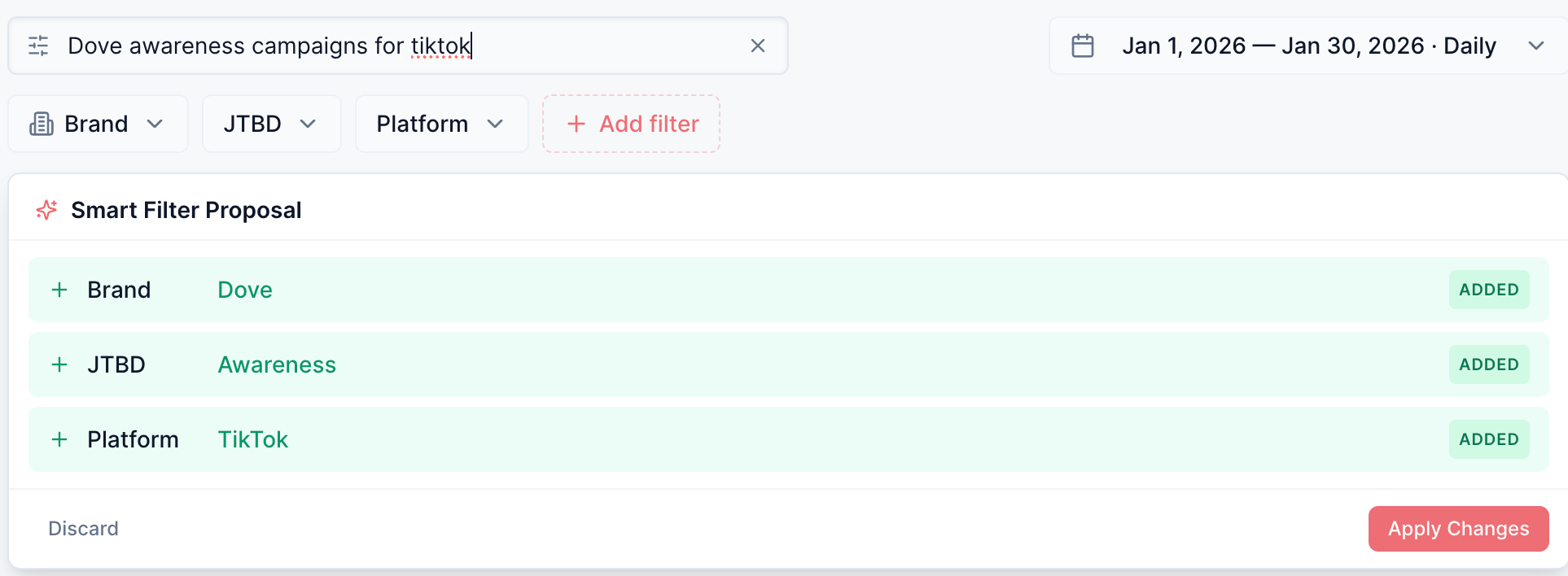
The Smart Filter is the text input at the top of every lens page. Instead of clicking through multiple filter dropdowns one by one, you can simply type what you're looking for in natural language and hit Enter.
Example:
Dove Awareness campaigns for TikTok
This instantly sets Brand → Dove, JTBD → Awareness, and Platform → TikTok — all at once.
How to Use It
1. Type your query
Click the filter input and describe the data you want to see. You can mention any combination of:
Tip: You can use common synonyms — e.g., typing "Facebook" or "Instagram" both map to the Meta platform filter. "High performing" or "best performing" maps to Conversion.
2. Press Enter
A proposal card appears showing exactly what will change, colour-coded for clarity:
3. Review and decide
Click Apply Changes to accept the proposal and update all filters
Click Discard to cancel and keep your current filters unchanged
How It Works with Dropdowns
Smart Filter and the dropdown filters stay perfectly in sync:
Smart Filter updates dropdowns — when you apply a proposal, the dropdown buttons reflect the new selections (e.g., the Brand button shows a count badge).
Dropdowns update the summary — when you manually change a dropdown, the active filter summary below the input updates automatically.
The active summary line (e.g., Brand: Dove · JTBD: Awareness · Platform: TikTok) appears below the input whenever you have active filters and the input is empty, so you always know what's applied.
Tips & Shortcuts
Example Walkthrough
Scenario: You're viewing the dashboard with no filters active and want to focus on Dove's awareness campaigns running on TikTok.
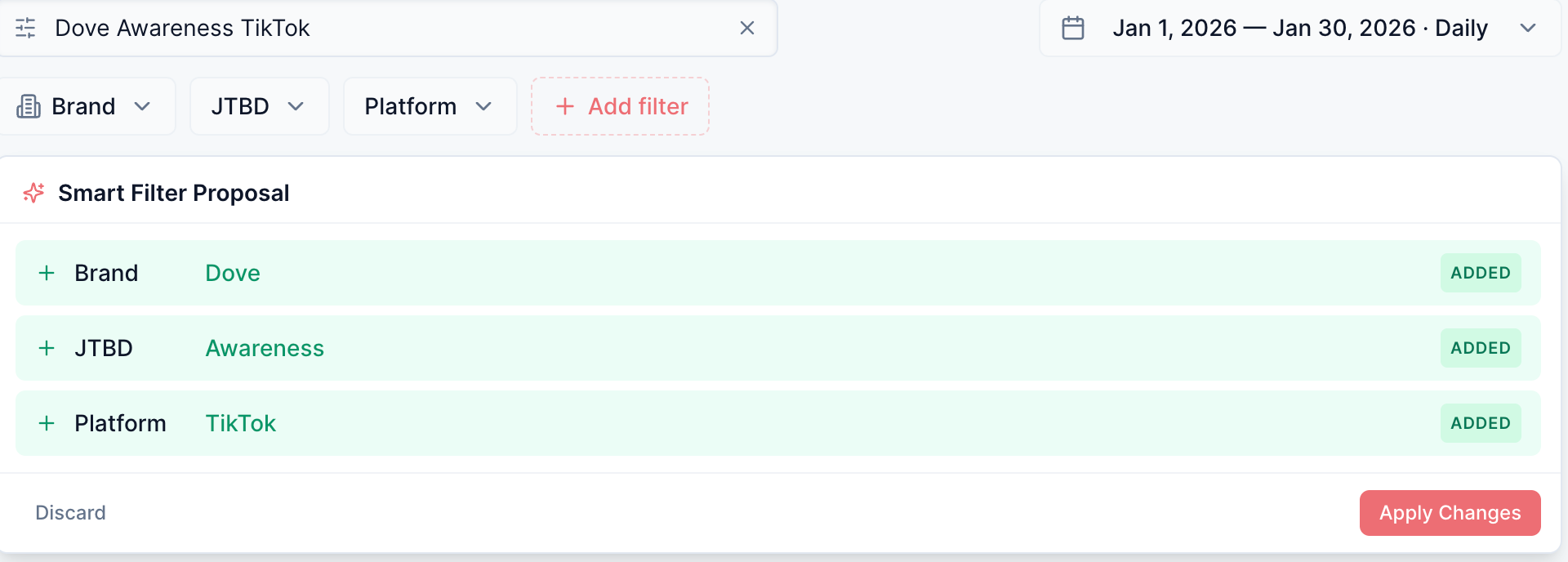
Type: Dove Awareness TikTok
Press Enter
The proposal card appears:
? Brand — Dove (Added)
? JTBD — Awareness (Added)
? Platform — TikTok (Added)
Click Apply Changes
All three dropdowns update, and the dashboard refreshes to show only matching data
Later, you want to switch to Meta instead of TikTok:
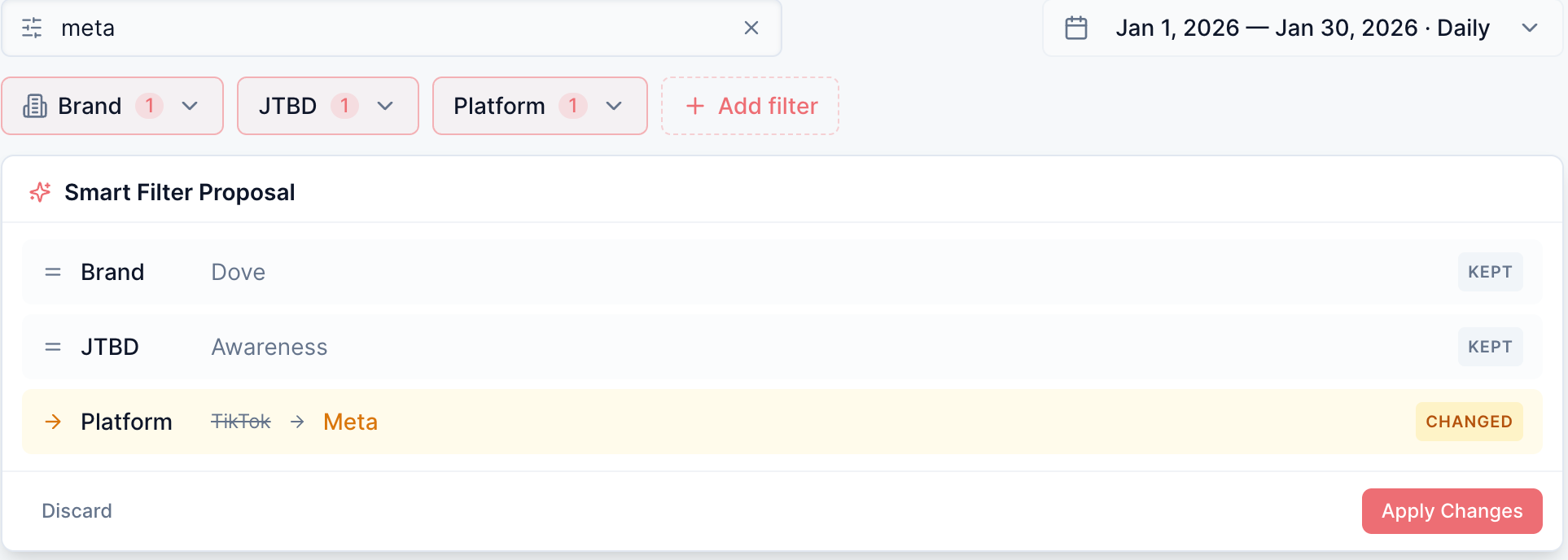
Type: Meta
Press Enter
The proposal card appears:
Brand — Dove (Kept)
JTBD — Awareness (Kept)
Platform — TikTok → Meta (Changed)
Click Apply Changes
Only the platform filter changes — Brand and JTBD remain as they were
Frequently Asked Questions
Q: What happens if I type something that doesn't match any filter? A: Unrecognised words are simply ignored. The proposal will only show changes for dimensions where a match was found. If nothing matches, no proposal appears.
Q: Can I set multiple values for the same filter? A: Yes — if your query mentions multiple brands (e.g., Dove and Knorr), both will be set on the Brand filter.
Q: Does Smart Filter replace the dropdowns? A: No. Both work together. Use Smart Filter for speed, use dropdowns for precise browsing of available options with counts.
Q: Is it case-sensitive? A: No. dove, Dove, and DOVE all work the same way.
Was this article helpful?
That’s Great!
Thank you for your feedback
Sorry! We couldn't be helpful
Thank you for your feedback
Feedback sent
We appreciate your effort and will try to fix the article